

Connect Brandfetch
1
Open Brandfetch in the directory
2
Connect and sign in
Select Connect to Claude and sign in with your Brandfetch account. If you don’t have one, sign up for free; the free plan includes 100 brand fetches (one-time).When you’re back on the Connectors page, Brandfetch is listed under Your connectors as Connected.On Team and Enterprise plans, an Owner selects Connect for your team to add Brandfetch for the organization. Members then connect their own Brandfetch account. Members who see Request instead are asking an Owner to add it.
3
Allow network access for asset downloads
To put logos and other assets into files Claude creates, such as decks and documents, Claude’s code execution needs to reach Brandfetch’s CDN. By default it’s blocked on the web, desktop, and mobile apps.Go to Settings → Capabilities. Under Code execution and file creation, turn on Allow network egress and add
*.brandfetch.io to Additional allowed domains. On Pro and Max plans you can do this yourself. On Team and Enterprise plans, an Owner sets it in Organization settings → Capabilities.Use it in a conversation
In a chat, select + in the message box, then Connectors, and make sure Brandfetch is switched on. The switch applies per conversation. Then ask for what you need:- “Show me Stripe’s logo”
- “What are Nike’s brand colors and fonts?”
- “Write a launch email in Okta’s brand voice”
- “Make a slide with the logos of Notion, Figma, and Linear”
The interactive brand card
When you ask about a brand,get_brand shows its full profile as an interactive card in the conversation:
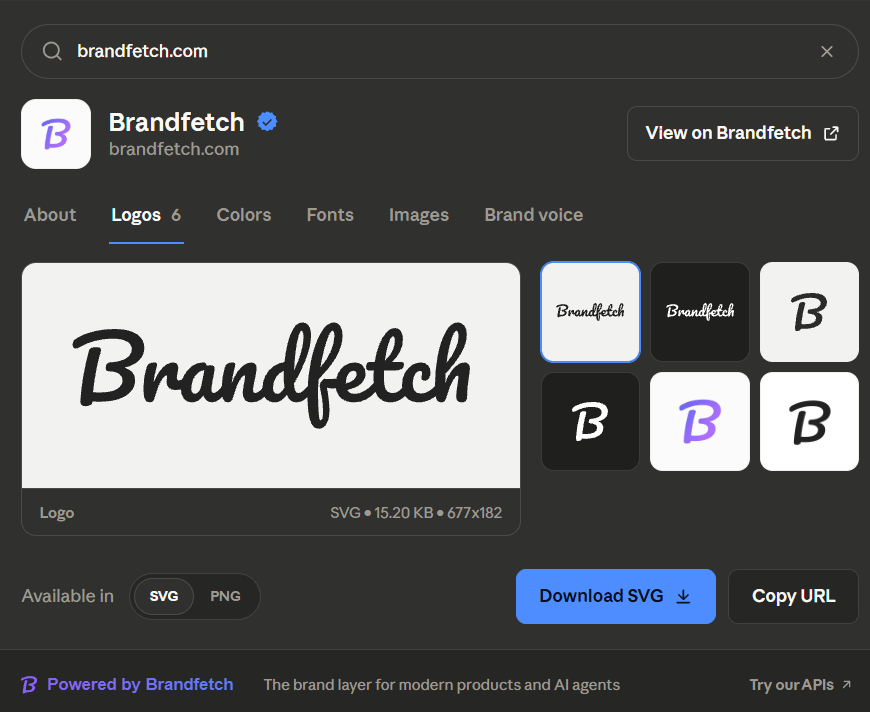
The brand card rendered by get_brand in Claude
- Six tabs. About (description, company facts, social links), Logos, Colors, Fonts, Images, and Brand voice. It’s the same profile the Developer Playground shows, adapted to chat.
- Assets you can use immediately. Pick any logo variant, switch between its available formats, and download the file or copy a ready-to-use URL. Each asset shows its format, file size, and dimensions.
- Search without leaving the card. Look up another brand from inside the card; the conversation follows, so “add that logo to the deck” always means the brand on screen.
- Opens on the right tab. Ask for a specific aspect, like “Okta’s brand voice” or “Nike’s colors”, and the card opens directly on that tab.
- Native to Claude. The card follows Claude’s light and dark themes and typography, so it reads as part of the conversation.
Downloading brand assets
The card’s Download button hands the file straight to Claude, with no network setup needed. When Claude builds a file itself, such as a PPTX, DOCX, or PDF, it downloads assets from Brandfetch’s CDN in its code execution environment. That’s what the network access step is for. Without it, Claude can’t download the files directly, so image work is slow and unreliable. If a document only needs to display a logo, Claude can link to the image instead of downloading it. See Downloading brand assets for how this works in any MCP client.Manage or disconnect
Go to Customize → Connectors and select Brandfetch under Your connectors. From there you can:- Set Tool permissions to Always allow, Needs approval, or Blocked for each tool
- Disconnect to sign Claude out of Brandfetch
- Remove the connector from the three-dot menu